Clawdbot + Smart Home: The Ultimate Voice-Free Home Automation Guide
Learn how to integrate Clawdbot with your smart home devices for seamless, text-based home automation. Control lights, thermostats, locks, and more from any messaging app.
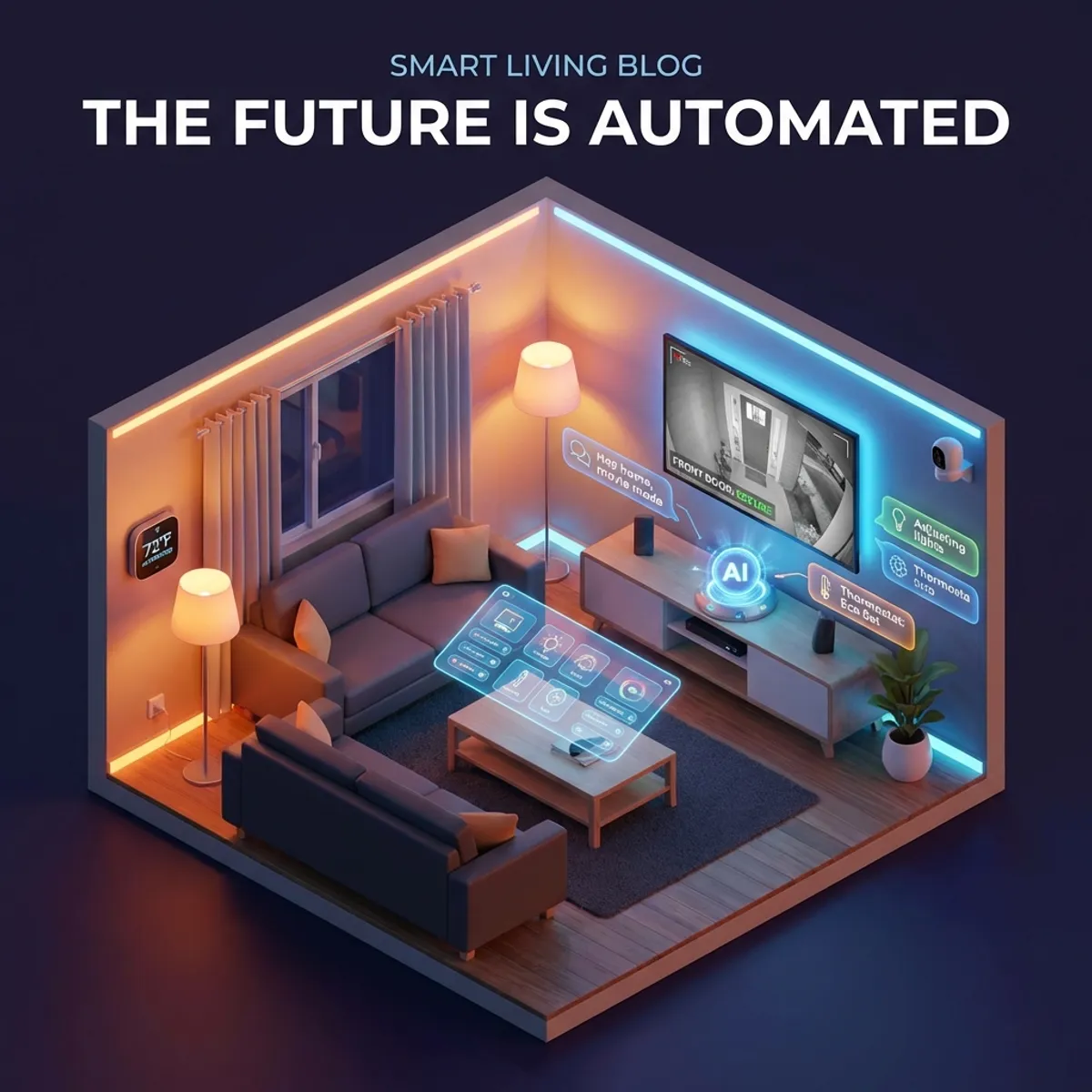
Tired of shouting “Hey Google” or “Alexa” across your house? What if you could control your entire smart home by simply texting your AI assistant from any messaging app? Welcome to the Clawdbot smart home experience.
Why Text-Based Home Automation?
Voice assistants have limitations:
- Privacy concerns — Always-listening devices
- Awkward in shared spaces — Nobody wants to hear you adjusting the thermostat
- Unreliable recognition — Accents, background noise, misinterpretations
- Limited context — No memory of your preferences
Clawdbot offers a different approach:
- Text from anywhere — Control your home from work, bed, or vacation
- Private — No always-listening microphones
- Intelligent — Remembers your preferences and routines
- Platform-agnostic — Use WhatsApp, Telegram, Discord, or any app
Supported Smart Home Ecosystems
Clawdbot integrates with major smart home platforms:
| Platform | Integration Method | Devices |
|---|---|---|
| Home Assistant | Native API | Everything |
| Apple HomeKit | Homebridge plugin | All HomeKit devices |
| Google Home | Google Smart Home API | Nest, compatible devices |
| Amazon Alexa | Alexa Smart Home Skill | Echo, compatible devices |
| SmartThings | SmartThings API | Samsung & compatible |
| Tuya/Smart Life | Tuya Cloud API | Budget smart devices |
| Philips Hue | Direct Hue Bridge API | Hue lights & accessories |
| MQTT | Direct broker connection | DIY & advanced setups |
Getting Started: Home Assistant Integration
Home Assistant is the most powerful option, supporting 2,500+ device types.
Step 1: Enable Home Assistant API
In your Home Assistant configuration:
# configuration.yaml
api:
homeassistant:
  name: Home
  unit_system: metric
Step 2: Generate Long-Lived Access Token
- Open Home Assistant → Profile
- Scroll to “Long-Lived Access Tokens”
- Create a token and copy it
Step 3: Configure Clawdbot
clawdbot plugin install homeassistant

clawdbot config set plugins.homeassistant.url "http://your-ha-ip:8123"
clawdbot config set plugins.homeassistant.token "your-long-lived-token"
Step 4: Test Connection
clawdbot run "List all available smart home devices"You should see a list of your Home Assistant entities.
Smart Home Control Examples
Lighting Control
You: Turn on the living room lights
Clawdbot: ✅ Living room lights are now on at 100% brightness

You: Set bedroom lights to 30% warm white
Clawdbot: ✅ Bedroom lights set to 30% brightness, 2700K color temperature

You: Turn off all lights except the hallway
Clawdbot: ✅ Turned off 12 lights. Hallway light remains on.
Climate Control
You: What's the current temperature in the house?
Clawdbot: 📊 Current readings:
- Living Room: 72°F (22°C)
- Bedroom: 68°F (20°C)
- Office: 74°F (23°C)
Thermostat is set to 70°F, currently heating.

You: Set the thermostat to 68 degrees for the night
Clawdbot: ✅ Thermostat set to 68°F. Based on current temperature,
the house should reach target in ~45 minutes.
Security & Locks
You: Lock all doors
Clawdbot: ✅ Locked:
- Front door
- Back door
- Garage door
All 3 doors are now secured.

You: Is the garage door closed?
Clawdbot: ✅ Yes, the garage door is closed and locked.
Last activity: Closed at 6:42 PM today.
Multi-Device Scenes
You: Movie mode
Clawdbot: 🎬 Activating Movie Mode:
- Living room lights dimmed to 10%
- TV turned on
- Soundbar set to Cinema preset
- Curtains closed
- Thermostat set to 72°F
Enjoy your movie!
Creating Context-Aware Automations
Time-Based Automation
# Good morning routine
clawdbot cron add "0 6:30 * * 1-5" "
Run my morning routine:
- Gradually increase bedroom lights to 50% over 15 minutes
- Turn on kitchen lights to 100%
- Set coffee maker to brew
- Read out today's weather and first 3 calendar events
"

# Goodnight routine
clawdbot cron add "0 23 * * *" "
Run my goodnight routine:
- Turn off all lights except bedroom at 20%
- Lock all doors
- Arm the security system
- Set thermostat to 66°F
- Confirm everything is ready and send summary
"
Calendar-Aware Automation
clawdbot skill add "meeting-prep" "
When I have a meeting starting in 5 minutes:
- Set office lights to video call brightness (80%, 5000K)
- Mute doorbell notifications
- Set TV and speakers to silent
- Post a 'In a meeting' status to Slack
"
Presence-Based Automation
clawdbot skill add "away-mode" "
When I say 'leaving home':
- Turn off all lights
- Lock all doors
- Arm security system to 'Away' mode
- Set thermostat to eco mode (62°F)
- Turn off any running appliances
- Send me a confirmation in 2 minutes
"

clawdbot skill add "welcome-home" "
When I say 'almost home' or I'm detected arriving:
- Disarm security (if armed)
- Turn on porch light
- Set thermostat to comfort (70°F)
- Turn on living room lights to 70%
"
Advanced: Energy Monitoring & Optimization
Daily Energy Report
clawdbot cron add "0 8 * * *" "
Generate my daily energy report:
- Yesterday's total energy consumption
- Top 3 energy-consuming devices
- Comparison to last week's same day
- Any devices left on overnight that shouldn't be
- Suggestions for energy savings
"
Smart Energy Decisions
You: Which devices are using the most power right now?
Clawdbot: 📊 Current power consumption (Top 5):
1. HVAC System: 2,340W (heating)
2. Dryer: 1,800W (running cycle)
3. Home Office PC: 450W
4. Refrigerator: 120W
5. Living Room TV: 85W

Total: 4,795W
Estimated hourly cost: $0.72

The dryer will finish in ~25 minutes. Consider running
high-power appliances after 9 PM for off-peak rates.
Multi-User Smart Home
Family Integration
Set up profiles for family members:
clawdbot config set smarthome.users.john.telegram "@john_phone"
clawdbot config set smarthome.users.john.preferences.sleepTemp 68
clawdbot config set smarthome.users.john.preferences.wakeLights 80

clawdbot config set smarthome.users.jane.telegram "@jane_phone"
clawdbot config set smarthome.users.jane.preferences.sleepTemp 70
clawdbot config set smarthome.users.jane.preferences.wakeLights 60
Clawdbot can then adjust based on who’s asking:
John: Set up the bedroom for sleep
Clawdbot: 🌙 John's sleep preferences applied:
- Bedroom lights off
- Thermostat set to 68°F
- White noise machine on
- Phone set to Do Not Disturb

Jane: Set up the bedroom for sleep
Clawdbot: 🌙 Jane's sleep preferences applied:
- Bedroom lights dimmed to 10%
- Thermostat set to 70°F
- Lavender diffuser activated
Troubleshooting Common Issues
Device Not Responding
# Check device status
clawdbot run "What's the status of the living room light?"

# Force refresh device states
clawdbot run "Refresh all smart home device states"

# Check Home Assistant connection
clawdbot plugin status homeassistant
Slow Response Times
# Enable local API calls (faster)
clawdbot config set plugins.homeassistant.localApi true

# Cache device states
clawdbot config set plugins.homeassistant.cacheSeconds 30
Command Misinterpretation
Be specific with device names:
- ❌ “Turn on the light” (ambiguous)
- ✅ “Turn on the living room ceiling light”
Or create aliases:
clawdbot config set smarthome.aliases.mainLight "living_room_main_ceiling"Security Best Practices
- Use local network only — Don’t expose Home Assistant to the internet
- Rotate tokens — Generate new access tokens quarterly
- Limit permissions — Create a dedicated Clawdbot user with only needed access
- Audit commands — Review
~/.clawdbot/logs/smarthome.logregularly - Confirm destructive actions — Set up confirmation for security-critical commands
clawdbot config set smarthome.confirmActions '[
  "disarm security",
  "unlock door",
  "open garage"
]'
The Future of Home Automation
With Clawdbot, your smart home becomes truly intelligent:
- Context-aware — Knows your schedule, preferences, and habits
- Accessible anywhere — Control from any device, any app
- Private — No cloud dependency for basic operations
- Conversational — No memorizing specific commands
Welcome to the post-voice-assistant era of smart home control.
Your home, your rules, your interface. Clawdbot makes smart homes actually smart.
FAQ
Q: Do I need Home Assistant for this to work? A: No, but it’s recommended. Clawdbot also supports direct integrations with Hue, Tuya, and other platforms.
Q: Can Clawdbot work completely offline? A: For smart home control via Home Assistant’s local API, yes. LLM processing requires either local models or API access.
Q: How does this compare to Apple Home or Google Home? A: Those require voice or their specific apps. Clawdbot works from any messaging app and has persistent memory of your preferences.
Q: Can I set up automations that Clawdbot runs even when I’m asleep? A: Yes! Cron jobs run independently on your Clawdbot server, 24/7.
Q: Is there a mobile app for Clawdbot smart home? A: No dedicated app needed—just use your existing messaging apps (WhatsApp, Telegram, etc.).